GIT
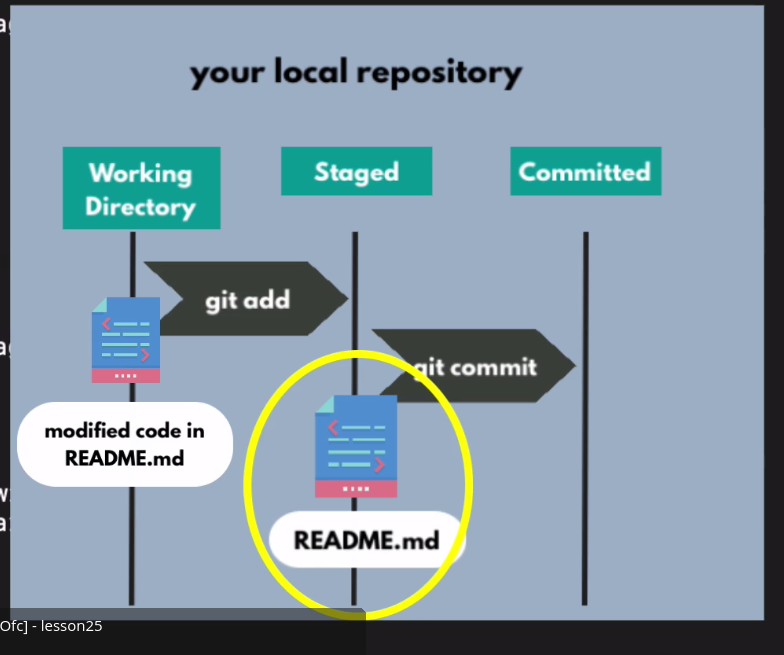
git status is used to see which are changes made but not added in staging area
then add it via git add <file>
git stage and add is same
we can remove cache of git via git rm -r --cached .
say we added a new file in gitignore that was already pushed. When we remove cached and commit and push it will be removed from the repo
git commit --amend is a command used to modify your very last commit instead of creating a brand new one. It combines any currently staged changes with your previous commit, effectively overwriting it in your local history
git switch --orphan test-v2 we can create a new branch using this with empty things
git branch -m or -M <new name> this move the current branch to a new locally then we need to push
-m (Safe Rename) It renames the branch but stops and fails if a branch with the new name already exists.
-M (Force Rename) It forces the rename, completely deleting/overwriting any existing branch with that target name.
git branch -d <name of branch> to delete
The --set-upstream flag (shorthand: -u) in git push links your current local branch to a specific remote branch. This process converts your local branch into a "tracking branch".
# Create a new local feature branch
git checkout -b feature-login

# Push and link it to the remote server ('origin') for the first time
git push --set-upstream origin feature-login

# Shorthand version of the exact same command
git push -u origin feature-login

# For all future updates on this branch, just type:
git push
there are 2 types of merging we can do 1. normal merge add 2. rebase
say i made a change in my local repo and another developer made change on remote repo. and if i try to push my local repo i will need to pull the change that were already made to my local repo and then only i will be able to push. it mean my local change will be merged with the remote one
if i do normal git pull then first it will pull the changes and then create a new commit on top of my commit and the new commit will be merge commit and then if i push it will push 2 commit.
but we can avoid the merge commit if we do it via git pull -r this mean rebase. so it will pull the code with new changes and stack our commit on that no merge commit will be created.
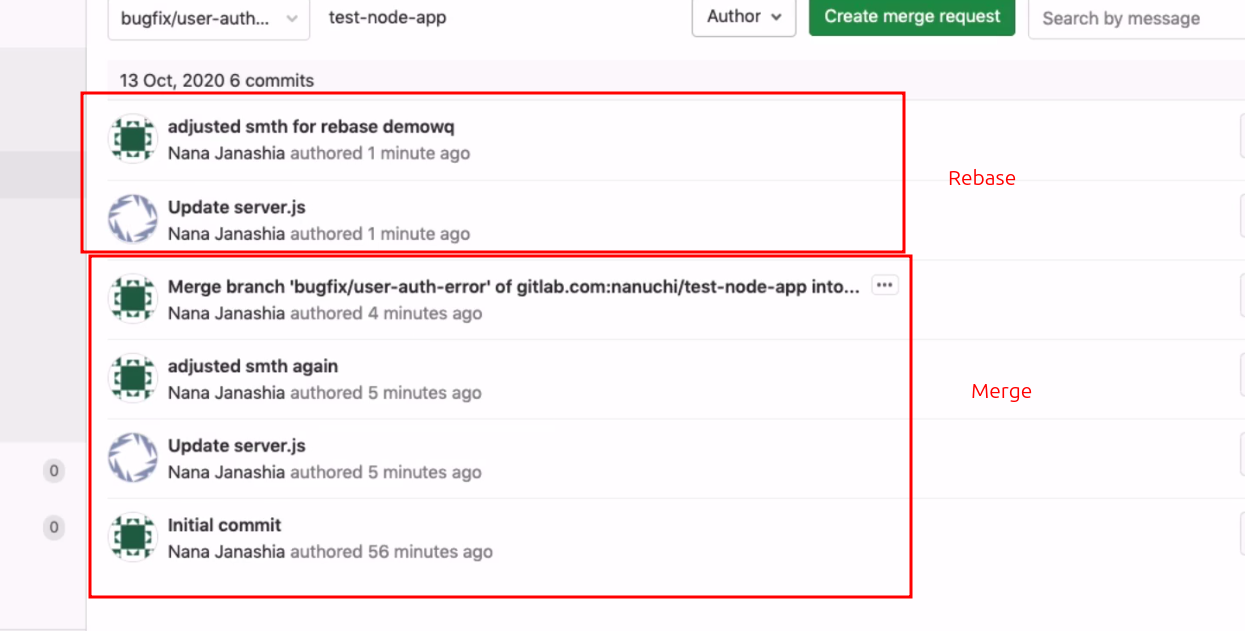
git rebase make the history clean while git merge make messy branch
git fetch will download history but unlike pull it wont merge
when doing git pull sometime we might need to merge instead of rebase use --no-rebase flag
error: Your local changes to the following files would be overwritten by merge: app/api/v1/routers/ai_tutor/ws_route.py app/services/AI/AI_services.py Please commit your changes or stash them before you merge. Aborting
this occurs when we have changes to make on a branch and that branch is already ahead and have modified same files 2 options we have here 1. save the change and merge the code 2. reset the local conflicting file or whole
saving
git stash # save
git merge <branch-name>
# OR if you were doing a pull: git pull
git stash pop # add the saved after merge
reset
git checkout -- app/api/v1/routers/ai_tutor/ws_route.py app/services/AI/AI_services.py
#or
git reset --hard
#or
git reset --hard HEAD~4 # this will delete last 4 commit
| Command | Moves HEAD? |
Keeps Staging Area? (Changes staged) | Keeps Local Files? (Working directory) | Risk Level |
|---|---|---|---|---|
git reset --soft |
Yes | Yes (Preserves as staged) | Yes (Untouched) | Safe |
git reset --mixed |
Yes | No (Cleared) | Yes (Untouched) | Safe |
git reset --hard |
Yes | No (Cleared) | No(Overwritten/Deleted) | Dangerous |
if the mistake commit is already pushed to the remote git repo and we want to delete last 1 commit then we will first delete the commit via git reset and then we need to push that changes to the remote however the normal push wont work it will say we need to do git pull because the local repo is 1 commit behind (the one we removed). to force the change git push --force should be used.
however this is not recommended doing in a master branch or dev branch because many developer have already might have pulled and if they try to push it will create problem. better alternative is to do revert instead of reset
git revert <commit hash> this will create a new commit which will make inverted code changes
we can also use git checkout <commit hash> to go to any commit
git merge <source branch>
If you want to view a combined view of every single line added or removed across your entire repository, omit the file path:
- Unstaged changes:
git diff - Staged changes:
git diff --staged